



- Product Describe
-
Equipment Name: Static Cone Penetrometer
Device model: CLD-3B
Instruction Manual
Overview:
The CLD-3B static cone penetrometer uses mechanical transmission to steadily press the probe into the soil at a uniform speed.
Suitable for testing in strata such as soft soil, cohesive soil, loess, and sandy soil, this device utilizes the resistance generated when the probe comes into contact with the soil. The change in resistance is converted into an electrical signal and transmitted to measuring instruments on the ground. The entire instrument features lightweight components and a compact size, making it easy to carry and install. It boasts high operational efficiency and can be equipped with probes and sensors of various diameters.
- Technical Parameters
- Structural form: main unit (entire machine), ground anchor, hand-crank type.
- Rated penetration force: CLD-3 30 kN.
- Cross-plate shear: <132 kPa
- Pull-out force: 15 kN, 25 kN.
- Penetration speed: 1.2 meters/minute.
- Host weight: 60 kg.
- Working principle
- Connect the main unit to the beam (9) with screws.
- Select the anchor points according to the length of the beam, and drive two ground anchors (11) into the soil (on both sides of the main unit).
- To set the anchor, you can use the anchoring force tube (7) and have two people push it at a steady pace, or you can use large pipe wrenches to set the anchor.
- Install the host between the two anchor rods, ensuring it is placed horizontally and securely filled with soil—do not allow it to shake.
- Insert the ground anchor clamp (12) into the ground anchor rod and place it on the crossbeam.
- Arrange the probe rods one by one, threading the cable wires through each rod individually. Connect one end to the probe—secure the cable wire connections with waterproof tape—making sure absolutely no water can seep into the cables (as water ingress could damage the probe). Connect the other end to the instrument.
- Attach the probe to the probe rod, then pass it through both the upper and lower holes. Connect the probe rods one by one (tighten the connections at the joints). Place the guide sleeves (2) and (10) onto the lower holes of the main unit, clamping the probe rods so that they cannot sway from side to side.
- Insert the locking block (5) into the probe rod joint. As you press the probe into the soil, place a wedge-shaped pressure plate (6) on top of the locking block. Then, shake the main unit’s handle to rotate the chains on both sides of the main unit. The chain stop pins (4) on either side of the chains will hold the wedge-shaped plate in place, allowing you to steadily push the probe into the soil at a uniform speed.
- When lifting, place the mountain-shaped plate beneath the locking block, then reverse-rotate the main unit handle to slowly raise the probe.
- The vane shear test (available separately upon customer request): Place the worm gear box on the main unit using the same method. Each full rotation of the worm gear box handle corresponds to 1 degree; simply record this data.
- When conducting an undisturbed soil shear test using a vane shear apparatus, insert the vane into the test depth and allow it to remain stationary for 2–3 minutes before starting the undisturbed soil vane shear test.
- For the remolded soil shear test, after the undisturbed soil test is completed, rotate the vane six full turns along the shear direction to thoroughly disturb the surrounding soil, and then begin the remolded soil shear test.
- Precautions
- When using the machine for the first time after it leaves the factory, users should apply oil or grease between all gears and sprockets. During the running-in period, please have a mechanical professional adjust the machine as needed.
- If a cross-plate shear test is required, you’ll need to purchase a worm gear box and place it on top of the main unit; all other procedures remain the same.
- After each job is completed, please oil, clean, and store it properly to prevent rusting.
- The probe rod undergoes heat treatment at our factory, ensuring that its hardness and toughness both exceed those of ordinary steel. The joints also need to be lubricated.
- The probe must be disassembled, cleaned, and lubricated after use.
IV. After-sales Services
1. If quality issues are discovered more than one month after the instrument is sold, and provided the exterior shows no damage and the user has not disassembled or repaired it themselves, the entire unit can be replaced upon presentation of the invoice (excluding the exterior).
2. For all instruments sold, the warranty period is one year, calculated from the date of the invoice. If the user disassembles or repairs the instrument without the manufacturer’s or distributor’s consent, or if the instrument is improperly used or damaged to the extent that it cannot be repaired, the user shall bear full responsibility.
3. Even after the warranty period has expired, the manufacturer will still be responsible for repairs, charging only the cost of labor and materials.
5. The probe must be properly stored and carefully protected against water ingress. The cable connectors should be tightly sealed with waterproof tape to prevent water from entering. As the probe is a consumable item, it is not covered under warranty. It should be periodically calibrated according to usage conditions. If the probe has been in use for over one year, it is recommended to replace it with a new probe and return both the probe and the original instrument to our factory for professional inspection and calibration. This is to prevent aging of electronic components or a decline in probe sensitivity, thereby ensuring the accuracy of the measured data. (If the on-site testing results are satisfactory, there is no need to replace the probe; simply adjust the instrument’s settings for calibration yourself.)
6. If you encounter any other technical issues that cannot be resolved, please contact your dealer promptly. Thank you for choosing our products—we will do our utmost to serve you.

Host schematic diagram
CLD-3B Static Cone Penetrometer Configuration List
Serial number Name Unit Quantity Note 1 Host rack Taiwan 1 2 Probe rod root 20 3 Ground anchor root 2 4 Ground anchor pressure iron Only 2 5 Ground anchor rod clamp Only 2 6 Anchor and force lever root 2 7 crank Only 2 8 Mountain-shaped pressure plate Only 1 9 Card block Only 1 10 Guide sleeve Pay 2 11 Probe connector one 1 12 Measuring instrument Taiwan 1 Or quietly explore the microcomputer. 13 Dual-bridge probe Only 1 14 Reducing coupling Only 20 15 8-core cable Rice 25 Single-bridge measurement
Black Green Yellow Orange
Red gray white blue
Dual-bridge measurement
Manual for the Static Cone Penetrometer
1. Connect the probe: Attach one end of the cable to the instrument’s junction box, and connect the other end securely to the probe. (If the instrument shows erratic, random fluctuations in data without a probe connected, this is normal. During measurement, if the data fluctuates erratically or remains stationary, check whether the connections are loose, whether any of the cable wires are broken, and whether the probe itself is damaged.)
2. Turn on the microcomputer’s power switch and press the Enter key to proceed.
3. Press the ‘1’ key to enter single-bridge measurement mode; press the ‘1’ key again to enter single-bridge mode. Press the ‘2’ key to enter dual-bridge mode, and press the ‘3’ key to enter cross-plate mode. Enter the relevant parameters, use the K value from the calibration record sheet as the coefficient, and press the Confirm key to enter the measurement state.
4. Pressure test probe (rotate the head), data changes normally, and wiring is correct.
5. After connecting correctly, press key A to zero the instrument (zeroing can be repeated), then press key B to start the test. During the penetration process, press the record button on the meter every 10 cm to log the data. Press the “S” key to display the curve on the screen (press “S” again to switch between curves). Continue until the test is complete. In data table mode, press the “C” key to end the test, and press the “Y” key to confirm and exit. Press the “Y” key to save the data, and note down the data number for this borehole for communication and future reference on this device.
Chapter 1: Overview
- Introduction: The static cone penetration tester developed by our company features high testing accuracy and stable performance, with a resolution as fine as one ten-thousandth. It employs independent three-channel A/D conversion and supports automatic depth sampling, as well as manual and time-based sampling modes, enabling single-bridge, dual-bridge, vane shear, pore water pressure, and excess pore water pressure dissipation tests. All data stored in memory remain intact even without power supply. From its external appearance to its internal architecture, the device has undergone a completely new design, allowing seamless switching between curves and data. During testing, users can quickly scroll upward to view previous depth data or curves. Moreover, all measurement databases stored on the microcomputer can be displayed directly on this unit, and users can modify, add, or delete data entries. The device also allows editing of single-bridge, dual-bridge, and vane shear data, and boasts the following features:
- Features and Performance:
- This device is compact in size, with a main unit measuring 208 x 148 x 58 mm, making it easy to carry. It weighs only 0.5 kg and features a fully enclosed structural design. Inside the device, there are three independent A/D channels that operate without interfering with each other.
(1) Three-channel differential input channels, each with a measurement range of -2 to 12.5 mV.
(2) A/D conversion resolution: 1/20,000.
(3) Linear error of the instrument measurement system: ≤ ±0.1%.
(4) Sampling time: 10 ms.
(5) Depth sampling interval: 10 cm.
(6) Time sampling interval: 1 s to 36 h.
(7) External probe specifications: Single- and dual-bridge static cone penetration probes of various cross-sectional areas, pore-pressure static probes, and cross-shaped vane probes of various specifications.
(8) Single-hole maximum recording depth: 100 m.
(9) Onboard data storage capacity: a. Single-bridge data: 20,000 m.
b. Double Bridge Data: 20,000 m.
c. Sanqiao Data: 20,000 m.
d. Higher pore count: 199.
The display screen features a large 240x128 dot matrix, with full Chinese character display. It is equipped with a time display and, during testing, can simultaneously show data from three channels as well as the depth reading. It can also continuously display test values for up to ten depths at once. Additionally, it allows switching to display the 6-meter depth profile curve.
2. The onboard memory is extremely easy to access. This device’s RS232 communication port connects directly to a PC, and it can also be converted to a USB interface (it can also be sent to a USB flash drive for storage; a separate USB flash drive reader is available for purchase).
3. It uses a high-capacity lithium battery internally, providing a working time of over 50 hours (the capacity can be increased to more than 60 hours as needed). When connected to an external 12V battery, it can operate continuously for more than 10 days. The built-in lithium battery can be recharged repeatedly for over 400 cycles.
4. This machine features a user-friendly design in all aspects and adopts a modular approach. It can be configured in the following ways: (1) single bridge with cross plates; (2) single bridge, cross plates, and dual bridges; (3) single bridge, cross plates, and dual bridges. Users are free to choose between single-pore pressure bridges and dual-pore pressure bridges, helping to save costs.
III. Precautions
1. Before using this device, please read the instruction manual carefully.
2. This device uses high-precision components; please do not open it at will (unless you are a professional). Also, protect it from rain, impacts, drops, and heavy pressure.
3. If the low-voltage indicator light inside the device illuminates, recharge it promptly.
4. If the host is not used for an extended period, the internal battery should be charged regularly—once a month.
5. This device does not have an automatic shutdown function; you must turn it off after use.
6. If the device fails to display upon startup, please check the battery (data will not be lost even without power) and the power switch.
7. If the instrument fails to display measurement values properly, first check whether the probe is damaged, whether the cable is broken, whether all connectors are intact, and whether the wiring is correct. Only after confirming that none of these issues exist should you contact our factory for repair.
8. When the instrument is not connected to a probe, the measurement data are irregular (the data fluctuate randomly).
9. Pay attention to cleanliness and protect the screen and casing. (Do not expose the screen directly to sunlight.)
IV. Charging Method
- The microcomputer is equipped with two built-in high-capacity lithium batteries, each rated at 3.6V and 3600mA, enabling continuous operation for over 40 hours.
- After finishing work, the microcomputer must be turned off. If the lithium battery’s discharge voltage drops below 5.8V, its capacity will significantly decrease once it’s recharged. Therefore, you must turn off the computer and recharge the battery once a month.
- When the low-voltage indicator light on the microcomputer illuminates, the built-in lithium battery typically reads around 7.2V and can still operate for about 2 hours. You should recharge it promptly. If the built-in buzzer sounds but the microcomputer does not display anything, pay attention: even if no display appears, you should immediately turn off the device.
- The microcomputer’s backlight is designed for users to operate at night and consumes a lot of power. The backlight can only run continuously for about 25 hours, so it should be used as sparingly as possible.
- If the battery voltage is low, it should be charged promptly. The charging time is approximately 20 hours for slow charging and around 10 hours for fast charging. A longer charging time does not affect the battery’s quality. The microcomputer features automatic overcharge protection and an automatic cut-off function; during charging, the charging indicator light will remain on.
Chapter 2: Usage Instructions
I. Name, connection, and usage instructions for the attachment:
1. Depth signal sampling (angle machine sold separately)
The rotating wheel is tightly pressed against the probe rod (which is held in place by a spring). It can be paired with probe rods ranging from 25 to 42 mm in diameter. The rotating wheel has a circumference of 10 cm. For every 10 cm penetration of the probe rod, the rotating wheel completes one full rotation, triggering a microswitch to send a signal. The microcomputer then automatically starts sampling. If you need to retract the probe rod, check the zero position and press the "Retract G" key once. The microcomputer will stop sampling; press it again to resume sampling. This ensures precise depth measurement.
-
- Manually sample the depth signal: For every 10 cm penetration of the probe, press the manual depth signal button, and the microcomputer will automatically sample the data.
1. The display uses a 240x128 dot-matrix, fully Chinese-character display with backlight.
2. Undervoltage indicator light
3. External power supply, charging indicator light
4. Signal input, alarm indicator light
5. Keyboard (0–9): a: Number keys b: Select menu items
6. Use ← and → to shift, and use ↑ and ↓ to change lines. During display and testing on this device, pressing ↑ and ↓ will scroll the screen up and down by 1 meter per flip (1 screen per flip). Pressing ← and → will quickly scroll the screen by 5 meters per flip (5 screens per flip).
7. Letter keys,
A: Zero adjustment (zeroing can be repeated)
B: The start key (the recording key during calibration) must be pressed to begin recording.
C: End key (Enter the next function key; follow the on-screen instructions)
D: End key (ends the test, ends calibration; follow the on-screen instructions)
Y: Yes is
N: No No
S: Curve display
G: Recall function (press once to turn on, press again to turn off)
8. External power socket
9. 15-core standard socket (external signal input)
10. 9-pin standard socket (RS232 communication output, convertible to USB or USB flash drive)
11. Power switch
12. Display brightness adjustment
13. Confirm Key: After completing input on each screen or when turning the page, always press the Confirm key to proceed. (If the microcomputer prompts without displaying any letter-key hints, press the Confirm key to return.)
14. Back key: Return to the microcomputer’s main menu.
15. Record key: Record
16. Backlight switch
17. Charging methods: fast charging, slow charging
III. Display items of the microcomputer:
This device features independent three-channel signal inputs, allowing it to simultaneously display: one depth value, three sets of test data, and, at the same time, 10 consecutive test data points at a depth of 1 meter as well as a curve showing data at a depth of 6 meters. The display is intuitive and clear, and you can easily switch between the curve and the data for instant insight into changes in soil layers. (The instructions for user operation are displayed at the bottom of the screen.)
4. This device has 64 KB of memory.
- Single-hole recording 100m
- More porous numbers 1–199 (the data measured are stored within this numbering range),
- More probe calibration numbers (calibration data are stored within the range of 201–299)
- When the device's memory reaches 190, it will prompt the user that the memory is almost full and advise them to save their work and clear the memory as soon as possible.
- After each test is completed, you must record the identification number of the data saved by the microcomputer for future retrieval.
- The device’s memory automatically saves data, and it must maintain integrity and accuracy. Once the microcomputer enters the test interface and starts the testing process, all data is saved. However, if the device is shut down, power is interrupted, returned to a previous state, or subjected to accidental operations during the testing process, a prompt will appear before re-entering the test mode: “Please complete the last experiment; the data is saved under number xx.” The same applies to calibration mode. In such cases, the saved data represents results from previous tests, and users can choose whether to save them or not. If the measurement process is not normally completed, the above prompt will appear to prevent data loss (calibration mode does not require saving).
- The device automatically displays the current time—no power is required, and no settings are needed. The time is stored automatically in memory. Therefore, if you’ve entered the wrong user number, simply check the date and hole number displayed on the device to confirm the correct information.
5. Wiring of the probe:
The probe is a vulnerable component in the measurement system, and a damaged probe cannot function properly. Common probe failures include: water ingress into the probe; permanent deformation or fracture of the strain element due to excessive pressure on the probe; internal wire breakage or short circuits within the probe; and improper reassembly of the probe after disassembly.
A probe cannot function properly if its wiring is connected incorrectly. To connect the probe correctly, you must first measure it. The circuit inside a single-bridge probe is shown in the figure: one set of circuits has four leads—A, B, C, and D. A dual-bridge probe contains two sets of bridges—A, B, C, D, E, F, G, and H—totaling eight leads. The pore-water-pressure dual-bridge probe includes three sets of bridges (A, B, C, D, E, F, G, H, J, K, L, M), with a total of 12 leads. When performing the measurement, first select the 2000 Ω resistance range on a digital multimeter. The four leads that are connected to each other form a group; within each group, identify the two leads that exhibit the higher resistance value (in the figure: A and B or C and D). Typically, the resistance between these two leads is around 350 ohms. The resistance between adjacent leads A and C or A and D is approximately over 200 ohms. These two leads constitute a pair, and the resistance values of these two pairs (A and B, as well as C and D) should be identical. If the difference exceeds 1 ohm, it indicates that the probe is damaged. Connect one lead from each group to the bridge power supply, and connect the other pair to the measurement terminals. The bridge power supply is shared among all three sets of bridges.

Deep interface bridge voltage
6. Calibration of the probe:
Newly purchased transducers must be calibrated using a microcomputer of the same model before they can be put into use. During operation, they should also be calibrated periodically according to relevant standards. When calibrating with this instrument, the increment between loading stages must be consistent each time. If the number of loading stages exceeds ten, simultaneous loading and unloading calibration can be performed; alternatively, only loading calibration can be carried out. A single transducer can be calibrated once or multiple times. This instrument allows for up to three calibration cycles. Users can select the appropriate calibration method based on their specific needs.
- Single-bridge probe calibration:
- Install the probe vertically on the calibration stand. Connect the probe to the microcomputer’s junction box according to the instructions provided. The junction box is connected to the microcomputer (15-pin). In the off state, connect the probe cable.
- Turn on the microcomputer and select the main menu item “2: Calibration.”
Main Menu
1. Measurement 2. Calibration
3. Display this device 4. Delete
5. Communication 6. Printing
7. Secondary measurement
Please press the menu number.
On the microcomputer screen, select “1: Cone Tip” from the calibration menu.
Calibration Menu
1. Cone tip 2. Side wall
3. Pore pressure 4. Vane test
Please press the menu number.
-
- The screen displays “Cone Tip Calibration Parameters.”
Conical Tip Calibration Parameters
Calibration date: xx.xx.xx
Probe number: xxx
Working area: xxx cm
Larger load: xxx.xx kN; Number of stages: xx
Cable specification: 04 × 0.20 mm
Cable length: xx.xx m
Confirm key through
D. According to the requirements, enter the parameters item by item. When entering values, use the ↑, ↓, ←, and → keys to select and modify the corresponding digits. The units of the parameters must match the units displayed on the screen. The load increment refers to the number of steps determined by the maximum load. For example: if the maximum load is 24 kN and the increment is 10 steps, then the 24 kN load is divided into 10 equal steps, each step being 2.4 kN. The load is gradually increased in increments up to 24 kN. Cable specifications refer to the cable wire specifications; our factory’s specification is 4 x 0.2 mm. To ensure the accuracy of calibration, each parameter must be entered and cannot be set to zero. Press the Confirm key to proceed; the input must be correct.
E. During calibration, the microcomputer screen interface is shown as in the figure:
Calibration cone tip N: x times
Instrument reading: xxxxx
Larger load: xx.xx kN
Grade difference: xx
Number of loading cycles: xx
Number of unloading cycles: xx
A. Zeroing B. Recording C. Continuing D. Ending
11. First, check the instrument reading: Verify that the probe wiring is correct. Perform a pressure test on the probe. If the digital display fluctuates erratically or remains unchanged, this indicates an error in the wiring (the wiring method has been described above). Press “A” to set the zero point (you can repeat the zero-setting process if necessary). Once the instrument reading shows a value of 0, the left side of the screen will display the step number (the number of steps set will be shown accordingly). N:x times indicates the number of calibration cycles (if more than three cycles are needed, you can perform up to three calibrations). Microcomputer screen calibration interface:
Differential number, calibrated cone tip N: x times
00:000.00 Meter reading: 000.00
01:000.00 Higher load: xx.xx kN
02:000.00 Level Difference: xx
03:000.00 Number of loading cycles: xx
04:000.00 Unloading cycles: xx
A. Zeroing B. Recording C. Continuing D. Ending
F. Start calibration: Place the probe in mid-air, press “A” to zero it, and then a step difference will appear on the screen.
First, the number 000.00 should be recorded by pressing the “B” recording key to enter the value “0”. The display will then show the next-level loading value, and the loading count will change from “0” to “1”, indicating that the user can now apply the first-level load. According to the loading value displayed on the microcomputer’s differential display, gradually increase the load until it matches the value indicated by the microcomputer. Then, press the “B” recording key to record the reading for the first-level load. Each time a new level of load is applied, the “B” key must be pressed once. At the same time, the display will show the next-level loading value and the current loading count.
G. When the measurement range is reached, the step size at full scale will change to XXXXX (indicating that the first load calibration has been completed). At this point, there are three options:
a. If the user chooses to perform only one load calibration and then exit: simply press the “D” key.
b. Do not perform unloading calibration, but you must perform a second loading calibration: Press the “C” key to continue and enter the second loading calibration. On the screen, “N:1” will change to “N:2,” signaling the start of the second calibration. Place the probe in mid-air, press “A” to zero the instrument, and once the differential reading becomes 0, press the “B” recording key to record the “0” value. The differential reading on the screen will then display the next-level loading value. The procedure for this second calibration is exactly the same as that for the first calibration (after the first calibration, unloading calibration is not permitted at all for either of the subsequent calibrations).
-
-
-
-
- Perform unloading calibration: Press the “B” key again, then record the full-scale value once more. The full-scale value will change to “00000”. The number of unloading steps will become “1”, prompting the user to unload step by step. For each unloading step, you must press the “B” key once to record the value at that step. Continue unloading step by step until reaching 0. When the value changes from 0 to ------, it indicates that the unloading process is complete. At this point, you have two options:
-
-
-
1: Perform the load-unload calibration only once, then end: simply press the “D” key.
2: Continue with the second load-unload calibration: Press the “C” key to proceed. (Since you’ve already performed a unload in the first calibration, you must perform an unload again for the second and third calibrations.) On the screen, the number “1” will change to “2,” indicating that the second calibration is about to begin. Place the probe in a suspended position, then press “A” to zero the reading; the differential value will now become 0. Next, press the “B” record key to log the “0” value. The differential value displayed on the screen will show the next higher load value, and the procedure for this second calibration is exactly the same as that used for the first load-unload calibration.
H. Press the “D” key to end the operation. The microcomputer will display the K-factor for this probe. Press the “Confirm” key, and if the user selects “Save” (Y), this probe will be saved by the microcomputer under this number.
I. When calibrating a probe, during the first calibration, users can freely choose the step size and decide whether to perform unloading calibration. However, starting from the second calibration onward, the procedure must be exactly the same as the one used for the first calibration.
J. Calibrating the probe is very simple—users only need to perform the operation once to grasp the underlying principle.
2. Calibration of the side walls of the dual-bridge probe:
When calibrating the side wall of a static cone penetration test dual-bridge probe, remove the cone tip so that the load is applied solely to the side wall. In the calibration menu, select the option “2. Side Wall.” Enter the parameter values based on the area of the side wall. The calibration procedure is exactly the same as that used for calibrating the cone tip. (Connect two wires to the side wall.)
3. Calibration of the pore water pressure transducer:
When calibrating the pore water pressure transducer, first saturate the transducer, then install it into the calibration container. In the calibration menu, select “3. Pore Pressure.” The unit for applying load is kPa. For other operational procedures, refer to the calibration method for static cone penetration tests.
4. Cross-plate calibration:
a: Install the cross-vane probe horizontally on the cross-vane calibration stand and connect the cable.
b: Turn on the microcomputer, select Main Menu 2, “Calibration,” and then select Calibration Menu 4, “Cross Plate.”
c: Enter the parameters for the cross plate—each item must be filled in. For the cross plate specification item, the input method is:
(The cross-vane diameter and blade height are 50 × 100 mm; the step size can be selected arbitrarily from 1 to 10. The cross-vane calibration is performed according to the user’s choice of weight quantities. The loading arm length must be entered (for a 20 cm loading arm, the applied force represents a torque). Typically, the loading wheel arm length on the cross-vane calibration stand is 20 cm. The calculation coefficient is selected by the user based on the investigation specifications—commonly 0.86. Next, enter the two cable specifications. The microcomputer then calculates the undrained shear strength Cu of the cross vane using the formula Cu = X × M × π × D³, where Cu is expressed in kPa. Press the “Confirm” key to proceed.)
d: Enter the biaxial plate parameters, including the standard values (weights of weights) for each loading stage. Perform biaxial plate calibration. The user selects the number of stages; accordingly, the user must enter the standard values for each stage. For example: If the user sets five stages, for the first stage, enter (e.g., 10.0 N); for the second stage, enter the weight of the weights (e.g., 10 N), which should be (10.0 N + 10.0 N) = 20.0 N; for the third stage, enter the weight of the weights (e.g., 10.0 N), which should be (10.0 N + 10.0 N + 10.0 N) = 30.0 N; for the fourth stage, enter the weight of the weights (e.g., 10.0 N), which should be (10.0 N + 10.0 N + 10.0 N + 10.0 N) = 40.0 N; and for the fifth stage, enter the weight of the weights (e.g., 10.0 N), which should be (10.0 N + 10.0 N + 10.0 N + 10.0 N + 10.0 N) = 50.0 N.
e: The user should first calculate the number and weight of the weights, then enter the step size. Each time a new step is added, it should match the standard value entered. The calibration method is the same as that used for the static cone penetration test.
The calibration instructions have been completed. When calibrating, please pay attention to the following points:
- Probe specifications: area, maximum load (exceeding the limit may damage the probe)
2. The side wall areas are 200 and 300. Please check carefully; if you get them mixed up, the measured values will be incorrect.
3. Finally, once the calibration data is communicated to the computer, a printed “Calibration Record Form” will be displayed.
7. Measurement:
Static cone penetration tests can be categorized into four types: single-bridge, double-bridge, pore-pressure single-bridge, and pore-pressure double-bridge.
The probes used differ (the probe model is selected by the user); only probes that have been calibrated by this microcomputer model can be used on this instrument. Their specific operating procedures are essentially the same:
1. Single-bridge measurement:
A. On the main menu, select “1. Measurement” to enter the measurement menu.
Measurement Menu
1. Single Bridge 2. Double Bridge
3. Cross Vane 4. Single-Cell Pore Pressure Transducer
5. Dual-bridge pore pressure sensor
Please press the menu number.
On the B measurement menu, select “1. Single Bridge” to enter the single-bridge measurement parameters.
Single Bridge Measurement Parameters
Test date: xx.xx.xx
Hole No.: xxx
Probe number: xxx
Conical tip area: xx cm
Cone tip coefficient: x.xxxx
Higher alarm value: xx.xx MPa
Confirm key through
C Enter the hole number and probe number (selected by the user), the cone tip area, the cone tip coefficient, and the upper alarm value, which also serves as the maximum value on the x-axis of the curve (the user sets this value based on the probe specifications and project requirements; for example, if the measured value exceeds this threshold, an alarm will be triggered). After entering all the required information, press the Confirm key to proceed.
D Enter the single-bridge measurement interface, test the pressure probe, and after confirming it’s correct, press “A” to zero the reading. (with
During the subsequent penetration process, zeroing can be repeated. Press the “B Start” button, and the microcomputer will enter the measurement state. At this point, you can begin the penetration; the signals sent by the angular sensor, manual recording device, or instrument recording button will be automatically acquired by the microcomputer.
The data table is shown as in the figure:
H: xx.x m ps: xx.xx Mpa The top row displays real-time data.
The following row of data shows continuous data at a depth of 1 meter (completely identical in the dual-borehole pore pressure measurements).
During the probe penetration process, if the user needs to view depth data or curves from earlier sections, press ↑ or ↓ to scroll through the screen in increments of 1 meter (1 screen per increment). Press ← or → to quickly scroll through the screen in increments of 5 meters (5 screens per increment). Regardless of the depth currently being viewed, as soon as a signal is received from the angle sensor, manual recording device, or instrument recording key, the system will immediately return to the current depth. (The same principle applies exactly to dual-bridge pore pressure measurements.)
To display the curve, press the “S” key; the screen will show the image as shown: (Press the “S” key to switch between them). The curve displayed shows data at a depth of 6 meters.
H: XX. X XX. XX MPa
QC:
XX. XX
XX. XX
XX. XX
XX. XX
H: XX.X represents the depth at that time (m) XX. XX represents the higher alarm value for the ps reading (MPa).
P.S.: XX.XX compared to the line above shows: higher than the immediate data for penetration resistance.
XX.XX The row of data below shows: continuous data (ps values) at a depth of 1 meter.
XX.XX
XX.XX
XX.XX
XX.XX
XX.XX
XX.XX
During the probe penetration process, if the user needs to view the depth profile ahead, press ↑ or ↓ to scroll up or down by 6 meters per screen (1 screen per press). To quickly scroll through the profile, press ← or → to advance 30 meters per screen (5 screens per press). Regardless of the current depth being viewed, as soon as a signal is received from the angle sensor, manual recording device, or instrument recording key, the system will immediately return to the current depth. (The same applies exactly to dual-borehole pore pressure measurements.) While in curve mode, monitor changes in soil layers; when reaching the final borehole depth, press the “S” key to switch back to the data table. (You cannot end the session while in curve mode.)
F: When the test is about to end and you reach the final borehole, press the “C” key. The microcomputer will then ask you whether you really want to end the test. If you make a mistake during operation, simply press “N” to return to the measurement mode. You’ll need to press the “B” start key again for the microcomputer to resume data acquisition. If you press “Y,” the microcomputer will display the current penetration data and prompt you to save it in XXX. Press “Y” to save, or “N” to discard (no saving required). Once the penetration test is complete, you should record this identification number. In the future, you can use this number to retrieve the data both on this device and through communication interfaces.
Are we really going to end the trial?
Y: End N: Return
2. Double-bridge test: A: The procedure is exactly the same as that for the single-bridge test.
B: When entering parameters, add one more sidewall parameter.
C: The microcomputer displays two measurement data points—the tip q and the side wall ƒs (press the “S” key to display the curve on the screen). The data table is shown as illustrated.
Double Bridge Measurement
H: xx.x m qc: xx.xx MPa fs: xxx.x kPa
xx.x xx.xx xxx.x
xx.x xx.xx xxx.x
xx.x xx.xx xxx.x
xx.x xx.xx xxx.x
A. Zeroing B. Start C. End
The curve shows that pressing the “S” key will display the screen as shown in the figure: (Press the “S” key to switch between them.) (The curve displays data from the cone tip at a depth of 6 meters.)
H: XX. X XX. XX MPa
fs:
XXX. X
QC:
XX. XX
XX. XX
XX. XX
XX. XX
H: XX.X indicates the depth at that time (m); XX.XX indicates the upper alarm value for the cone tip (MPa).
fs: XXX.X This value displays: Instant data for the sidewall
QC: XX.XX Compared to the data in the line above: QC real-time data
XX.XX The row of data below shows: continuous QC data at a depth of 1 meter.
XX.XX
XX.XX
Monitor the changes in the soil layers in curve mode, and press the “S” key to switch back to the data table when reaching the bottom of the borehole (you cannot end the session while in curve mode).
3. Pore Pressure Static Cone Penetration Test:
A: Before conducting the penetration test, the probe should be vented to ensure that the pore-pressure sensor is fully saturated.
B: During the penetration process, you must not lift the probe back up, and you cannot zero the instrument midway through the test.
C: Pore pressure single-cell: refers to two measurement data points—cone tip qc and pore water pressure u.
D: Pore Pressure Dual Bridge: It measures three data points—the cone tip qc, the side wall ƒs, and the pore water pressure u.
The data table is shown as follows: (N: xx times represents the number of dissolutions)
The curve shows that pressing the “S” key will display the screen as shown in the figure: (Press the “S” key to switch between them.)
Pore pressure dual-bridge measurement N: xx times
H: xx.x m qc: xx.xx MPa fs: xxx.x kPa u: xxx.x kPa
xx.x xx.xx xxx.x xxx.x
xx.x xx.xx xxx.x xxx.x
xx.x xx.xx xxx.x xxx.x
xx.x xx.xx xxx.x xxx.x
A. Zeroing B. Starting C. Dissipating D. Ending
(The curve shows the cone tip data at a depth of 6 meters)
H: XX. X XX. XX MPa
u:
XXX X
fs:
XXX. X
QC:
XX. XX
XX. XX
XX. XX
XX. XX
H: XX.X displays: Current depth (m) XX. XX displays the alarm threshold for a larger cone tip.
u: XXXX Display: Instant pore pressure data
fs: XXX.X Display: Side-wall real-time data
QC: XX.XX Compared to the data in the line above: Real-time cone tip data
XX.XX The row of data below shows: continuous QC data at a depth of 1 meter.
XX.XX
XX.XX
Monitor the changes in the soil layers in curve mode, and press the “S” key to switch back to the data table when reaching the bottom of the borehole (you cannot end the session while in curve mode).
E: Pore Water Pressure Dissipation Test (N: XX indicates the number of dissipation tests)
During the piezometric static sounding test, select an appropriate depth for the excess porewater pressure dissipation test. The duration of the dissipation test can be as long as 4 hours and 10 minutes. When the probing depth reaches the point of dissipation...
To start the test depth, press the “C” key. The microcomputer will enter the excess pore water pressure dissipation test mode and immediately begin timing and sampling. (Press the “S” key to display the curve on the screen.)
The dissipation test is timed from 0 to 20 seconds. Record once per second from 0 to 20 seconds; once every 10 seconds from 20 to 120 seconds; once every 100 seconds from 120 to 1,200 seconds; and once every 1,000 seconds from 1,200 to 12,000 seconds. Multiple tests can be conducted at various depths. When the dissipation is complete, press the “D” key to return to the static sounding test and continue with the pore-pressure static sounding test.
The data table is shown as in the figure.
Pore Pressure Dissipation Test N: xx times
H: xx.x m t: xxxxx s u: xxx.x Kpa
xxxxxx xxx. x
xxxxxx xxx.x
xxxxxx xxx.x
xxxxxx xxx.x
D. Dissipation ends
The curve shows the screen display when the “S” key is pressed, as shown in the figure: (Press the “S” key to switch between them.)
H: XX. X NO: XX XXXX kPa
t:
XXX
u:
XXXX
XXXX
XXXX
XXXX
H: XX.X displays the depth at that time; NO: XX displays the number of dissipation cycles; XXXX displays the pore pressure alarm value (kPa).
t: XXXX This value indicates: time
u: XXXX compared to the data in the line above: real-time pore pressure data
The row of data below XXXX shows: 10 consecutive pore pressure data points.
XXXX
Monitor the dissipation of excess pore pressure under curved conditions; when the dissipation is complete, press the “S” key to switch back to data display.
Table (cannot be ended in curve state).
4. Vane Shear Test:
- Connect the vane sensor cable using the static single-bridge wiring method.
- Select the main menu “1. Measurement,” then select the measurement menu “3. Cross Plate” to display the interface for entering cross-plate parameters.
Cross-plate measurement parameters
Test date: xx.xx.xx
Hole No.: xxx
Board Head Number: xxx
Board head specification: 50 x 100
Board head coefficient: x.xxxx
Alarm value: XXX. X kPa
Recording method: A - Manual recording B - Time recording
- Use the keyboard to enter the relevant parameters item by item, inputting according to the requirements. Finally, select Key A: Manual Recording (manually turn the dial once and record each time); Key B: Time Recording (the microcomputer automatically records every ten seconds).
- Enter the depth setting for the cross-vane test. This depth is the test depth; press the Confirm key to proceed.
- The microcomputer enters the undisturbed soil test state for the vane shear test. First, check whether the vane connection is correct. Then, manually rotate the vane probe to verify that the test data are accurate. Once you confirm the accuracy of the data, press the “A” key to set the zero position. (Note: The zero position cannot be adjusted during the vane test itself; therefore, the initial zero setting must be precise.) After completing the checks, press the “B” key to start rotating the vane. (The interval between the moment the vane begins penetrating the soil and the moment torsional shearing starts should be less than 5 minutes.) Record the data manually—each full rotation of the hand crank should be noted. You can use either a manual recorder or the microcomputer’s recording function. The time will be automatically sampled every 10 seconds. During this period, the operator should ensure that the hand crank is rotated once every 10 seconds. The microcomputer will sample the test data automatically. (Press the “S” key to display the curve on the screen.) According to the standard procedure, when the vane torque reaches a peak or stabilizes, continue recording for another minute to confirm the peak or stable value. The microcomputer will automatically identify the occurrence of the peak and the stable value, so no manual interpretation is required. Once the microcomputer detects the peak and the stable value, a prompt message “Peak Detected” will pop up. At this point, the operator can end the undisturbed soil test by pressing the “Confirm” key to return to the main menu. If you believe the recorded value is not the true peak, keep pressing the “Record” key until you identify the actual peak. Then, press the “C” key to proceed with the remolded soil test. The data table will be displayed as shown in the figure.
Undisturbed soil: Cross-plate measurement H: xx.x m
n: xx Cu: xx.xx kPa
xx. xx.xx
xx. xx.xx
xx. xx.xx
A. Zeroing B. Starting C. Reshaping Soil D. Ending
For the remolded soil test, the vane should be rotated continuously six full turns clockwise to thoroughly mix the soil around the vane. Then, measure the peak and steady-state values of the remolded soil using the same method as before (the instrument must not be zeroed during the test).
When the peak and steady-state values appear during the remolded soil test, press the Confirm key to return to the test interface. To proceed to the next depth, press the "C" key. The microcomputer will then return to the depth-setting interface, where you can set the desired depth and confirm it. Once confirmed, the vane will be inserted into that depth. Press the "B" Start key to continue the vane shear test at this depth, following the same procedure as before.
The curve display shows the screen as illustrated when you press the “S” key: (Press the “S” key to switch between them) (You cannot exit while in curve mode.)
The horizontal axis of the curve shows the Cu data, and the vertical axis shows the rotation angle.
H: XX. X XXX. XKPa
n: XX
cu:
XXX. X
XXX. X
XXX. X
XXX. X
H: XX.X Display: Current Depth (m) XXX.X Display: Upper Alarm Value (kPa)
n: XX This value indicates: the angle of rotation
cu: XXX.X This data shows: real-time data
XXX.X This row of data shows: 10 consecutive angles and consecutive data.
XXX.X
XXX.X
After completing the tests at each depth within a single borehole, once all tests are finished, simply press the “D” end key to save the data and conclude the introduction of all the various tests.
5. Secondary measurement on a microcomputer refers to situations during the measurement process that are considered special, including: power failure, operator error, probe replacement, cable breakage, and so forth.
The usage is as follows:
-
- In the measurement state, if the microcomputer loses power and you need to replace the probe, etc. (and cannot save data normally), press the "Return" key to go back to the main menu or restart the device.
- Directly select “7—Secondary Measurement” to enter the parameter settings. (Note: When entering secondary measurement mode, the system will retain the measurement mode that was just running; do not select any other items in between.) If you change the probe, you must adjust the coefficient to match the new probe’s coefficient. You don’t need to input any other values. Press the Confirm key to proceed and return to the measurement state you just exited. Insert the probe back into the original depth, then lift it slightly, press the “A” key to zero the reading, and press the “B” key to start and continue the test at the original depth.
- In a single experiment, no matter how many times you exit unexpectedly (non-normal exit), you can still proceed from the second measurement. The data from this hole will be continuously sampled and saved by the microcomputer, without compromising data integrity. When replacing the probe, you must turn off and then restart the device.
Chapter 3: Data Processing
Under the main menu, select Data Processing and press “4” to display on the screen.
Data Processing
1. This device 2. Delete
3. Edit 4. Restore
Please press the menu number.
I. This device allows you to display the database stored in the microcomputer on this device itself, and you can modify, add, or delete data within the database using the following methods:
-
- “Local machine,” press “1” to display on the screen.
This machine displays
Stored measurement data: XXX
Stored calibration data: XXX
Enter data number: XXX
Confirm key
Stored measurement data: XXX (representing the total number of stored measurement data records on this device); Stored calibration data: XXX (representing the total number of stored calibration data records on this device).
Enter data ID: XXX (The user selects the data ID to be displayed)
-
- Enter data number: XXX, then press the Confirm key, and the data for this record will be displayed on the screen.
Date: xx.xx.xx Number: xxx Hole No.: xx
H: xx.x m qc: xx.xx MPa fs: xxx.x kPa u: xxx.x kPa
xx.x xx.xx xxx.x xxx.x
xx.x xx.xx xxx.x xxx.x
xx.x xx.xx xxx.x xxx.x
xx.x xx.xx xxx.x xxx.x
D Data Modification
Press ↑ and ↓ to scroll through one screen (1.1 meters per flip, displaying the data table); press ← and → for quick scrolling through five screens (5.1 meters per flip). If you need to display a curve on a single bridge or double bridge, press the “S” key—the screen will then show the curve. Press ↑ and ↓ to scroll through one screen (6 meters per flip); press ← and → for five screens.
(30-meter single-flip display) View. In curve mode, you cannot modify, add, or delete items.
3: To modify, add, or delete items, press the “D” key to enter the modification, addition, and deletion interface (within a single screen).
Date: xx.xx.xx Number: xxx Hole No.: xx
H: xx.x m qc: xx.xx MPa fs: xxx.x kPa u: xxx.x kPa
xx.x xx.xx xxx.x xxx.x
xx.x xx.xx xxx.x xxx.x
xx.x xx.xx xxx.x xxx.x
xx.x xx.xx xxx.x xxx.x
A Modify B Add C Delete D Return
A: Modification: Use the ↑, ↓, , ←, → keys to move the cursor and select the area to be modified. After completing the modification within a single line, you must press the “A” key.
B: Add depth: Use the ↑, ↓, ←, and → keys to move the cursor and select the desired depth. After modifying this row of data to the data you want to add, press the “B” key. The original data will shift down one row, effectively inserting a new row of data.
C: Delete: Use ↑, ↓, , ←, → to move the cursor and select the depth you wish to delete. Once the cursor is positioned on this line, press the “C” key to delete the data in this line.
After making changes on this screen, press the “D” key to return to the local display and continue reviewing the areas that need to be modified, added, or deleted. To make further modifications, simply press the “D” key again—the procedure for entering the modification, addition, or deletion interface is exactly the same.
- Delete: Press “2” to display on the screen
Data deletion
Stored measurement data: XXX
Stored calibration data: XXX
Enter data number: XXX
Confirm key
Enter data ID: XXX (Press the Confirm key after selecting the data ID you wish to delete.)
This data will be deleted (data deleted in this state can be recovered). For example: If there are a total of 50 saved measurement records, and the 18th record is deleted, the record numbers after the 18th will each decrease by 1. Thus, the 19th record number will become 18, and the total number of records will drop from 50 to 49 (please note this pattern).
- Resume: Press “4” to display on the screen
Data Recovery
Enter the original number: XXX
Confirm key
The original number is the number assigned when this data was first stored. The data deleted earlier had the number 18. If you wish to restore it, enter the data number 018 and press the Confirm key, and the data will be restored. However, once the data number 018 is restored, it will become the last number in the total count of measurement data numbers, changing to 50. (Please note this pattern carefully.) You can continue deleting this data as needed, but if you want to restore it later, you must enter the original data number 018. Users are advised not to repeatedly delete and restore data, as this can easily lead to confusion over time. If you’ve been using the system for a long time, consider clearing the memory—simply select option 3 “Data Deletion” from the main menu to empty the memory.
4. Editing: Press “3” to display on the screen.
Data Editor
1. Single Bridge 2. Double Bridge
3. Cross plate
Please press the menu number.
This instrument can edit single-bridge, double-bridge, and cross-plate data. The procedure is the same as during the actual test: After entering all the data, press the “Record” key; then continue entering data and press the “Record” key again. To save the data at the desired depth, press the “C” key and then the “Y” key.
Chapter 4: Data Deletion
On the main menu, select “Data Deletion,” press “3,” and the screen will display:
Data deletion
A. Delete all measurement data
B. Delete all calibration data
Data deleted in this state cannot be recovered (equivalent to a full wipe). Please note: If you have a large amount of data and have already restored it multiple times during data processing, and it’s been a long time since the last restoration, it’s best to perform a full wipe—it won’t cause any confusion.
Press the A key: Delete in-device measurement data
Press the B key: Delete in-device calibration data
Communication, format: TXT text file
Date: 06:06:04 Number: 001 Well Number: 111
#JK00001 Static Exploration Type: 1 #JK00001 represents the data ID
H: m ps: Mpa Static testing type: 1 represents single bridge
00.1 01.25 00.1 Tab 01.25 Enter
00.2 01.25
00.3 01.25
00.4 01.25
00.6 01.25
00.7 01.25
Date: 06:05:12 Number: 090 Well Number: 112
#JK00090 Static Exploration Type: 2 #JK00090 represents the data record number
H: qc: MPa fs: kPa Static probing type: 2 represents a dual-bridge.
00.1 09.99 240.1 Tab 09.99 Tab 240.1 Enter
00.2 09.99 240.1
00.3 09.99 240.1
00.5 09.99 240.1
00.6 09.99 240.1
00.7 09.99 240.1
Date: 06:06:05 Number: 089 Well Number: 113
#JK00089 Static Exploration Type: 3 #JK00089 represents the data ID
H: m n cu:kpa n cu 、 Remolded Soil, Static Probe Type: 3 represents the cross-vane.
max max H: Test Depth
1.0 15 51.1 18 30.9 cu:—Undrained shear strength of undisturbed soil (larger value at this depth)
2.0 15 23.5 23 15.2 cu 、 Remolded soil undrained shear strength (larger value at this depth)
3.0 23 50.7 16 23.5 n: The angle of rotation at the plate head when this depth reaches a larger value
4.0 14 42.5 15 41.2
5.0 25 76.3 17 53.2
Date: 06:06:05 Number: 090 Well Number: 124
#JK00090 Static Exploration Type: 4 #JK00090 represents the data record number
H: m qc: MPa u: kPa Static probing type: 4 indicates a single-cell pore pressure probe.
00.1 12.99 1516 00.1 12.99 1516
00.2 12.99 1516 00.2 12.99 1516
00.3 12.99 1516 00.3 12.99 1516
00.4 12.99 1516 00.4 12.99 1516
00.5 12.99 1516 00.5 12.99 1516
00.6 13.00 1515 00.6 13.00 1515
00.7 13.00 1515 00.7 13.00 1515
00.8 13.00 1515 The above data represent static cone penetration test data from single-bridge pore pressure measurements.
00.9 12.99 1515
Pore pressure dissipation
H t u H t u
00.5 00:00:02 1516 00.5 00:00:02 1516
00.5 00:00:03 1516 The above data represents the dissipation of pore pressure from a single bridge.
00.5 00:00:04 1516 (Depth) (Recording Time) (Pore Water Pressure)
00.5 00:00:05 1516
Date: 06:06:04 Number: 087 Well Number: 001
#JK00087 Static Exploration Type: 5 #JK00087 Representative Data Number
H: qc: MPa fs: kPa u: kPa Static probing type: 5 indicates a dual-cell pore pressure probe.
00.1 02.32 023.5 0345 00.1 02.32 023.5 0345
00.2 10.21 120.2 0232 00.2 10.21 120.2 0232
00.3 01.25 012.5 0125 00.3 01.25 012.5 0125
00.4 01.25 012.5 0125 The above data represent static cone penetration test data from the pore-pressure dual-probe system.
00.5 02.35 102.3 0231
00.6 03.25 153.2 0312
00.7 04.56 123.1 0231
Pore pressure dissipation
H t u H t u
00.7 00:00:01 0032 00.7 00:00:02 0032
00.7 00:00:02 0124 The above data represents the dual-cell pore pressure dissipation.
00.7 00:00:03 0121 (Depth) Recording time (Pore water pressure)
Warranty: One-year warranty on the entire unit (excluding the casing, display screen, and battery).
Company Profile
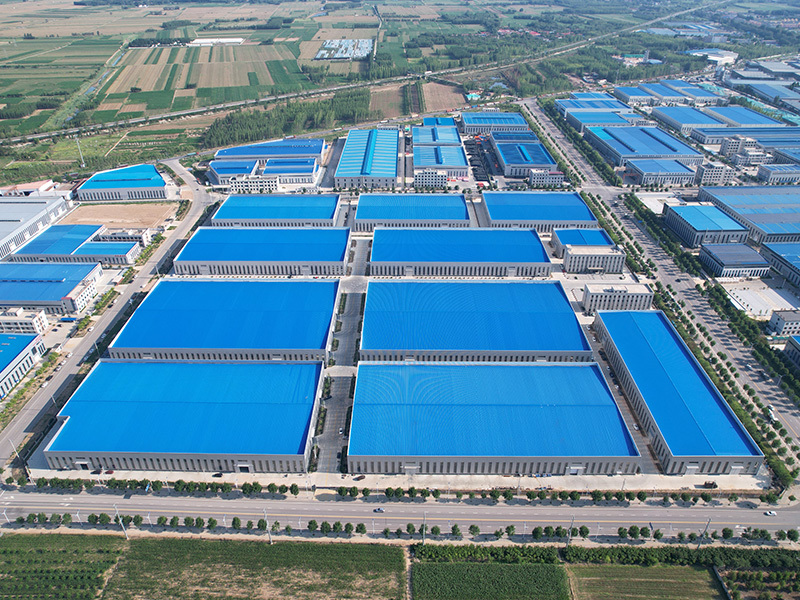
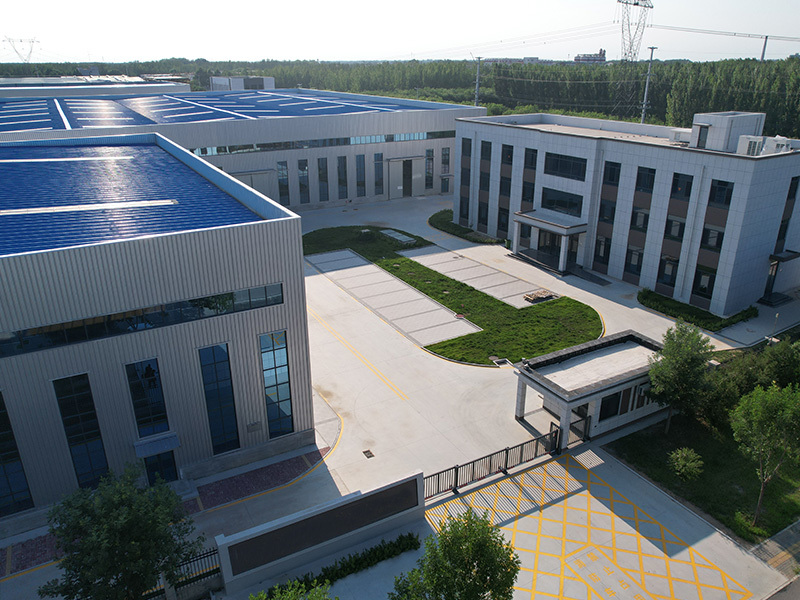
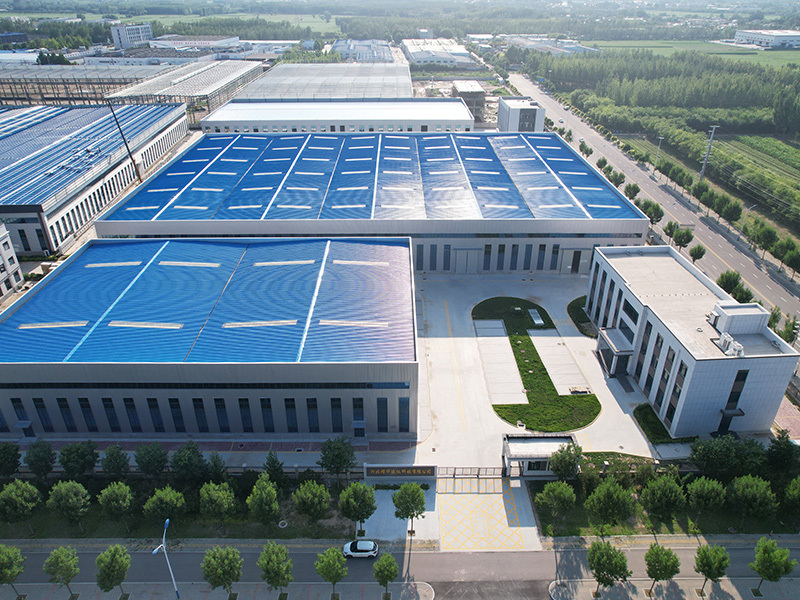
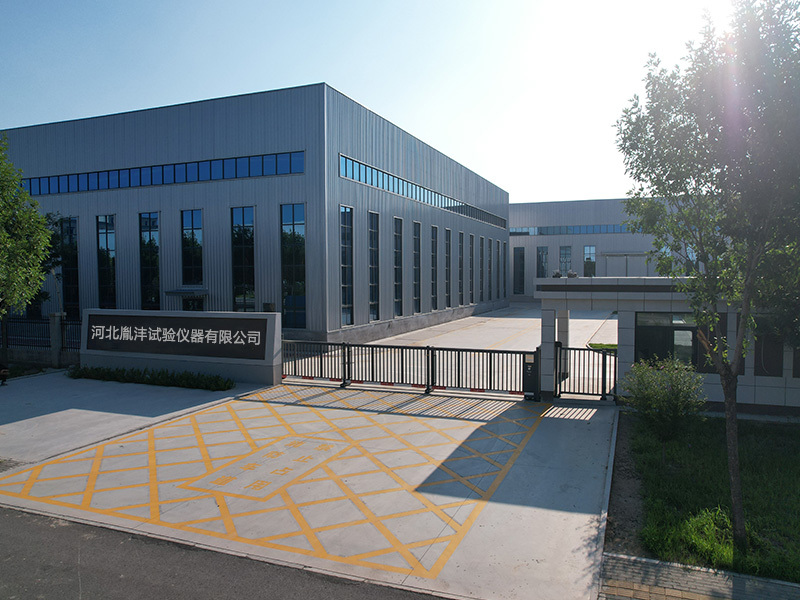
Hebei Yinfeng Experimental Instrument Co., Ltd. is a high-tech enterprise dedicated to the research and development, production, and sales of experimental instruments. The company is headquartered in Hebei Province, relying on the strong industrial foundation and technological innovation resources in the Beijing Tianjin Hebei region. It is committed to providing high-precision and high reliability testing equipment and solutions for material testing, engineering quality control, scientific research experiments and other fields.
Customized Delivery Process
We provide customers with full-process services ranging from pre-sale consultation, customized solution design, equipment installation and commissioning to after-sale technical support.
Online Communication
Provide Custom Drawings
Merchant Quotation
Sign A Contract
Processing And Production
Packaging And Distribution
Confirm Receipt Of Goods
Successful Transaction
Previous:
Double-bridge static cone penetrometer
If you need customized products, Contact US !
Share to


Category
Tag list
Request a Quote
We will contact you within one working day. Please pay attention to your email.
Related Products
Content update in progress
Message
We will contact you within one business day. Please note your email address.
Fast navigation
Contact Us
Whatsapp/Tel: +86-15931715356,+86 16631790555
E-mail: qcj@cnhblabequipment.com
Add: Chengnan Industrial Zone, Xian County, Cangzhou City, Hebei Province

Online Message